

I wanted one command that builds a release, stamps the right version into it, and hands me an artifact ready for the App Store or Google Play. No manual archive steps, no hunting through Visual Studio menus, no “wait, which signing profile did I use last time.” Just a publish script for two app stores.
I ended up with two scripts: publish-ios.ps1 and publish-android.ps1. They share a shape, they diverge exactly where the platforms force them to diverge, and one of them shipped with three bugs stacked on top of each other in a single upload path. One of those bugs came from a PowerShell quirk I’d genuinely never hit before, even after years of writing PowerShell. This post covers both scripts, then the bug hunt.
Both full scripts are up as Gists if you want to read or steal the whole thing: publish-ios.ps1 and publish-android.ps1.
Why one publish script for two app stores
I’m building Gourd Alert (fictionalized while my actual app is still alpha), a .NET MAUI app that checks nearby farms for gourd availability and yells at you when the good pumpkins come in. It ships to both the App Store and Google Play, and both builds needed the same basic pipeline: run tests, resolve a version, build, publish, and copy the artifact somewhere predictable.
Both scripts start from the same defaults. GitVersion resolves the current semantic version from the branch and commit history, and I stamp a version into three places: ApplicationDisplayVersion (the human-readable version users see), ApplicationVersion (the store’s internal build number), and the output filename itself. That version doesn’t come straight from GitVersion’s own Major/Minor/Patch/SemVer fields, though.
Those reflect GitVersion’s next computed version, which can drift ahead of the last real release tag depending on branch and commit heuristics, so a build could get stamped with a version nobody actually tagged. Instead, a shared Get-MobileStoreVersion function (in publish-version-functions.ps1, sourced by both scripts, also in the Gist) resolves the git tag that GitVersion’s version source commit actually points at, and builds the version from that tag plus the commit count since it: major * 10,000,000 + minor * 100,000 + patch * 1,000 + commitsSinceVersionSource, so tag 1.4.2 with 37 commits since becomes build 10402037. That formula keeps build numbers monotonically increasing even across branches, which both Apple and Google require, and ties every build back to a version someone actually tagged.
Both scripts also gate on tests. Unless you pass -SkipTests, the script runs both test projects before it touches a build output. I don’t want a broken build racing ahead just because I forgot a flag.
Signing and environment defaults
Signing works the same way on both platforms too, just with different property names. Each script reads a local, gitignored .props file (signing.local.props for Android, signing-ios.local.props for iOS) and fails loudly if the required properties are missing for the configuration you’re building. No signing file, no build. That’s deliberate. I’d rather get a clear error on my own machine than a mysterious codesign failure three steps into a remote build.
Neither real props file is checked into source control, obviously, but the tracked .example templates are in the same Gist: signing.local.props.example and signing-ios.local.props.example.
Environment selection and how the csproj wires it up
Environment selection follows the same pattern too. Both scripts take an -AppEnvironment parameter that controls which appsettings.<Environment>.json file gets bundled. If you don’t pass it, a debug build defaults to Development and a release build defaults to Production. A UAT/TestFlight pass needs -AppEnvironment UAT explicitly. I made that choice on purpose: defaulting release builds to Production means I can’t accidentally ship a UAT build to real users just because I forgot a flag, but it also means I have to remember the flag every time I want a UAT build. That’s the trade I wanted.
The -p:AppEnvironment=UAT MSBuild property the script passes in isn’t just a string the script reads. The app’s .csproj reads it too, and only embeds the matching appsettings.<Environment>.json file into the build:
<PropertyGroup>
  <AppEnvironment Condition="'$(AppEnvironment)' == ''">Development</AppEnvironment>
</PropertyGroup>

<ItemGroup>
  <!-- Keep these out of the default None glob; embedded as resources below instead. -->
  <None Remove="appsettings.json" />
  <None Remove="appsettings.Development.json" />
  <None Remove="appsettings.Local.json" />
  <None Remove="appsettings.UAT.json" />
  <None Remove="appsettings.Production.json" />
</ItemGroup>

<ItemGroup>
  <EmbeddedResource Include="appsettings.json" />
</ItemGroup>
<ItemGroup Condition="'$(AppEnvironment)' == 'Development'">
  <EmbeddedResource Include="appsettings.Development.json" Condition="Exists('appsettings.Development.json')" />
  <EmbeddedResource Include="appsettings.Local.json" Condition="Exists('appsettings.Local.json')" />
</ItemGroup>
<ItemGroup Condition="'$(AppEnvironment)' == 'UAT'">
  <EmbeddedResource Include="appsettings.UAT.json" Condition="Exists('appsettings.UAT.json')" />
</ItemGroup>
<ItemGroup Condition="'$(AppEnvironment)' == 'Production'">
  <EmbeddedResource Include="appsettings.Production.json" Condition="Exists('appsettings.Production.json')" />
</ItemGroup>
Don’t skip the None Remove block
That None Remove block isn’t decoration. Skip it and the MAUI SDK’s default item glob picks up every root-level .json file as a None item on its own, in addition to whatever you explicitly include as an EmbeddedResource. I’ve already lost an afternoon to a build SDK silently glob-including a JSON file it had no business touching, on a different project entirely: MAUI iOS Archive Fails on Windows: The Real Cause. That post covers a Razor SDK project auto-including appsettings.json as a Content item, which corrupted a Windows-to-Mac iOS archive with a drive-letter path baked into the bundle. Same failure mode, different default item type. If you’re wiring up environment-specific appsettings files in your own MAUI csproj, remove them from whatever default glob your SDK applies before you also declare them as EmbeddedResource, or you risk shipping the same file under two different MSBuild item types at once.
appsettings.json always ships as the base config, and whichever environment-specific file matches -AppEnvironment layers on top of it at runtime. Pass UAT and only appsettings.UAT.json gets embedded alongside the base file. The csproj’s own Development fallback only fires when AppEnvironment reaches MSBuild completely unset, which happens if you run dotnet build or dotnet publish directly instead of through the script. The script never leaves it unset. It resolves Production or Development itself first, so a release build launched through publish-ios.ps1 or publish-android.ps1 always lands on Production unless you pass -AppEnvironment UAT.
What the Android script does differently
publish-android.ps1 is the simpler of the two, mostly because Android doesn’t need a remote build host. Debug builds produce an APK directly with dotnet build. Release builds produce a signed AAB with dotnet publish, and the script verifies the signing props actually enable AndroidKeyStore before it even tries, because a release AAB built without a keystore fails in a way that’s much harder to diagnose after the fact.
The one Android-specific wrinkle is native debug symbols. A release build strips .dbg.so files into obj/Release/net10.0-android/app_shared_libraries, one per ABI. Google Play wants those symbols (renamed back to .so) if you want readable native stack traces in crash reports. The script harvests them into a staging directory, renames each one, and zips the result into GourdAlert-Android-Release-<version>-native-debug-symbols.zip next to the AAB. Skip this step and your crash reports come back as raw addresses instead of function names, which is a miserable way to debug a native crash.
Android has no upload step. I still upload AABs to Play Console by hand, mostly because Play’s release process (tracks, staged rollouts, review) doesn’t map cleanly onto a single CLI call the way TestFlight uploads do.
What the iOS script does differently
iOS is where things get more interesting, because I don’t own a Mac as my primary machine. I build on Windows and pair Visual Studio to a Mac mini over the network, which means publish-ios.ps1 has to pass remote-build arguments (ServerAddress, ServerUser, TcpPort, and the remote .NET SDK cache path) into every dotnet publish call. The script doesn’t install the iOS SDK on the Mac itself. It only consumes whatever Visual Studio’s Pair to Mac flow already cached there, which occasionally causes its own headaches, but that’s a separate story.
Once the IPA exists, -Upload hands it to App Store Connect via altool. Apple deprecated altool‘s notarization commands in November 2023 in favor of notarytool, but --upload-app still works for App Store and TestFlight uploads, so I stuck with it rather than pulling in Fastlane for one command. Authentication defaults to an App Store Connect API key (a Key ID and Issuer ID tied to a .p8 file on the Mac), with an Apple ID and app-specific password as a fallback.
What has to exist before -Upload works
None of that authentication setup lives in the script. -Upload assumes a working App Store Connect API key already exists on the Mac before you ever run it, and getting there is a one-time, mostly-in-a-browser process:
- In App Store Connect, go to Users and Access -> Integrations -> App Store Connect API and generate a key with the App Manager role. Admin access isn’t required for build uploads. Apple’s own walkthrough covers this step by step: Creating API Keys for App Store Connect API.
- Note the Key ID and the Issuer ID (the UUID at the top of the Integrations page). These become
-AppStoreConnectApiKeyIdand-AppStoreConnectIssuerIdon the script. - Download the
.p8key file. Apple only lets you download it once. Lose it and you revoke the key and generate a new one, there’s no re-download. - On the Mac, place it where
altoolscans for it automatically, named exactly as downloaded:mkdir -p ~/.appstoreconnect/private_keys mv ~/Downloads/AuthKey_<KEY_ID>.p8 ~/.appstoreconnect/private_keys/ chmod 600 ~/.appstoreconnect/private_keys/AuthKey_<KEY_ID>.p8 - Confirm
altoolsees it without prompting for a password:xcrun altool --list-apps --apiKey <KEY_ID> --apiIssuer <ISSUER_ID>
Windows needs OpenSSH’s ssh and scp clients on PATH too, since the script shells out to both for every upload. Apple’s general upload documentation covers Xcode, Transporter, and altool side by side if you want the wider picture: Upload builds to App Store Connect.
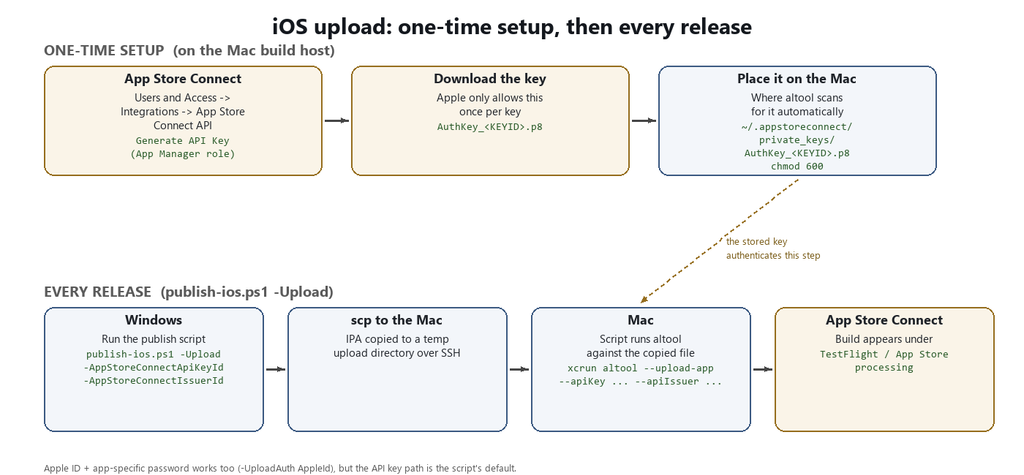
Once the key exists on the Mac, every future release just needs the flag and the two IDs:
./scripts/publish-ios.ps1 -MacHost <host> -MacUser <user> -Upload -AppStoreConnectApiKeyId <KEY_ID> -AppStoreConnectIssuerId <ISSUER_ID>
The upload mechanics are where I found three bugs in a single commit.
Three bugs in one upload path
The upload flow looks simple on paper. Copy the IPA to the Mac over scp, then run altool over ssh against the copied file. I wrote it, ran it once against a Debug-adjacent path that never touched -Upload, and moved on. The first time I actually ran it end to end with -Upload set, it fell over immediately, and it turned out three separate bugs were hiding in that one code path.
Bug one: a variable name that shadowed a switch
The first failure was a parameter binding error. PowerShell complained it couldn’t convert a string to a SwitchParameter. That error made no sense next to the line it pointed at, which just built a command string:
$upload = if ($UploadAuth -eq 'ApiKey') {
    "xcrun altool --upload-app --type ios --file '$remote/$($artifact.Name)' --apiKey '$AppStoreConnectApiKeyId' --apiIssuer '$AppStoreConnectIssuerId'"
} else {
    "xcrun altool --upload-app --type ios --file '$remote/$($artifact.Name)' --username '$AppleId' --password '@keychain:$AppPasswordKeychainItem'"
}
& ssh "$MacUser@$MacHost" $upload
The script also declared [switch]$Upload as a top-level parameter. PowerShell variable names are case-insensitive, so $upload and $Upload are the same variable. Assigning a plain string to $upload inside the function body silently overwrote the switch parameter’s value, and something downstream tried to coerce that string back into a SwitchParameter and failed. I’d never hit this before because I’d never happened to name a local variable something that collided with a parameter name one case away. The fix was just renaming the local: $uploadCommand instead of $upload. Obvious once you see it, invisible until a parameter shares a name with something you assumed a small if block kept scoped to itself.
Bug two: quotes that ate a tilde
The second bug was quieter. The remote upload directory started as a tilde-prefixed path:
$remote = "~/Library/Caches/GourdAlert/uploads/$([guid]::NewGuid().ToString('N'))"
and single quotes wrapped that path everywhere I passed it to ssh for the mkdir and cleanup commands. Single-quoted strings suppress tilde expansion in both bash and zsh, so the remote shell created a literal directory named ~ instead of expanding it to the home directory. The mkdir succeeded, and scp still worked because scp expands tildes on its own, but the ssh cleanup at the end tried to remove a path that didn’t match what scp had actually written to. I switched to an absolute path built from $MacUser instead of relying on tilde expansion inside a quoted remote command:
$remote = "/Users/$MacUser/Library/Caches/GourdAlert/uploads/$([guid]::NewGuid().ToString('N'))"
Bug three: the wrong filename
The third bug was the most direct. The altool --file argument pointed at $artifact.Name, the raw filename dotnet publish produced. But the file actually copied to the Mac was $destination, the renamed, version-stamped file like GourdAlert-iOS-Release-1.4.2-App.ipa. altool correctly reported that the target file didn’t exist, because the command never referenced the file that actually existed on disk. I fixed that by capturing the renamed filename explicitly with Split-Path -Leaf $destination and using that everywhere downstream instead of the original artifact name.
None of these three bugs showed up from reading the script casually. They only surfaced once I actually ran -Upload against a real Mac, which is the annoying truth about most scripting bugs involving remote hosts. Static review misses the parts that only fail at runtime, under the exact combination of shell, quoting, and case sensitivity you didn’t think to check. While I was in there, I also added exit-code checks after the remote mkdir and scp calls, since both had been failing silently and letting the script continue into a doomed upload attempt.
One line in Info.plist
Every App Store Connect upload used to prompt me for an export compliance answer, because Apple wants to know whether your app uses encryption beyond standard HTTPS/TLS. Gourd Alert only talks to standard HTTPS endpoints for purchases and crash reporting, which qualifies for the standard exemption. Adding one key to Info.plist lets App Store Connect infer that answer automatically instead of asking every single time:
<key>ITSAppUsesNonExemptEncryption</key>
<false/>
It’s a small thing, but it’s one less manual step between “IPA built” and “IPA live in TestFlight.”
Practical takeaways
If you’re building your own MAUI publish pipeline, or debugging a PowerShell script that talks to a remote host over SSH, a few things from this are worth remembering:
- PowerShell variable names are case-insensitive. A local variable that differs from a parameter name only by case will silently collide with it, and the resulting error rarely points at the real cause.
- Single-quoted strings passed to a remote shell over
sshsuppress tilde expansion in bash and zsh. Build absolute paths yourself rather than relying on~inside a quoted remote command. - When you rename or move a file after building it, make sure every downstream reference uses the renamed path. A stale reference to the original build output will fail with a confusing “file does not exist” instead of a clear naming mismatch.
- Check exit codes after every remote command, especially
scpandssh. A silent failure early in a multi-step upload just produces a more confusing failure later. - Static review of a script won’t catch bugs that only manifest with a specific shell, specific quoting, or a specific remote host. Run the actual path you’re worried about, end to end, before you trust it.

1 comment on “Building One Publish Script for Two App Stores (and Debugging the One That Almost Worked)”